Follow this link please :-)
http://wadigitaldrawing.blogspot.com/
Friday, September 12, 2014

Tuesday, September 9, 2014
Visual Texture, part 2
Here are examples of my visual texture creations....
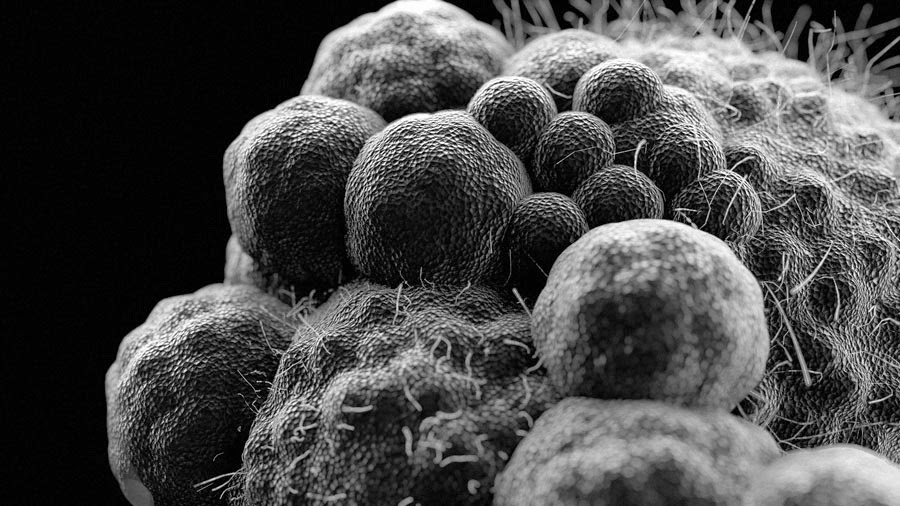
This one, I used an electron microscope picture of pollen, live traced and changed the fill to "default" (white fill, black lines)

I like how busy it is, and how there are large and small shapes = variety....
This one has pattern swatches (dots) applied to the shapes in the trace.....

ooooooh, even better here!

This one, I used an electron microscope picture of pollen, live traced and changed the fill to "default" (white fill, black lines)
This one has pattern swatches (dots) applied to the shapes in the trace.....
ooooooh, even better here!
Poster Design Link
Let's use live trace and type to create a "vote" poster for the Patagonia campaign....Follow the link to see the size requirements and information about the poster....
Here it is:
http://gallery.votetheenvironment.org/
Here it is:
http://gallery.votetheenvironment.org/
Monday, September 8, 2014


Live Trace Basics...
Live trace lets you convert any image into VECTOR shapes...... then you can select and modify the shapes.....
First: "Place" the image into Illustrator...

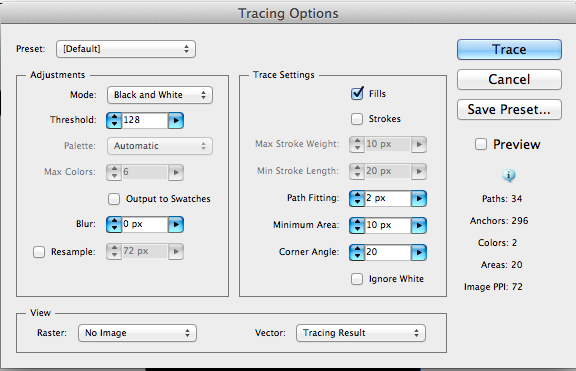
Use the live trace controls to select HOW to trace the image..


WARNING!!!
Keep it simple! Complex tracings will slow down (bog) your computer!
First: "Place" the image into Illustrator...
Use the live trace controls to select HOW to trace the image..
WARNING!!!
Keep it simple! Complex tracings will slow down (bog) your computer!
Blend Tool Basics
The blending tool is such fun to use, and a HUGE time saver.
Here's how it works:
Looks like this-

To use it,
Use the tool to select two shapes....
click on the first shape,
then....
Hold the "option" key when you select the second shape..... that gives you the control pannel for the blend.
Controls look like this:

EVEN BETTER, after you apply the blend.... you can select the blend tool icon to go back and change the settings!
Try it on letters too-
Here's how it works:
Looks like this-
To use it,
Use the tool to select two shapes....
click on the first shape,
then....
Hold the "option" key when you select the second shape..... that gives you the control pannel for the blend.
Controls look like this:
EVEN BETTER, after you apply the blend.... you can select the blend tool icon to go back and change the settings!
Try it on letters too-
Subscribe to:
Posts (Atom)